
Photo Collage Maker & Editor
TarrySoftPhotography
4.7327.00 Reviews
- Version
- 3.18.7
- Installs
- 10.00M
- Age Rating
- Everyone
Screenshots
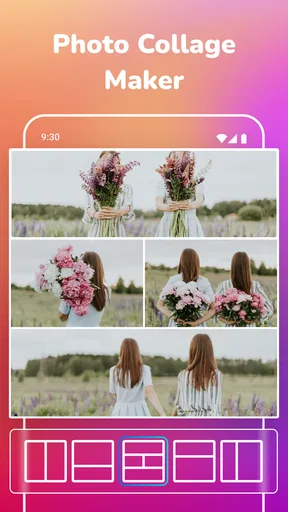
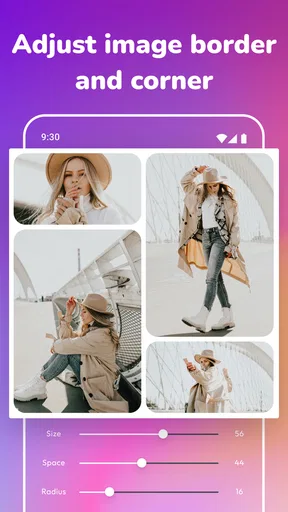
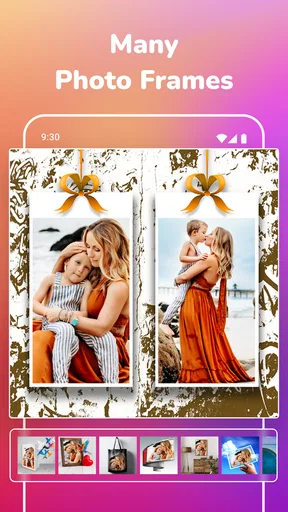

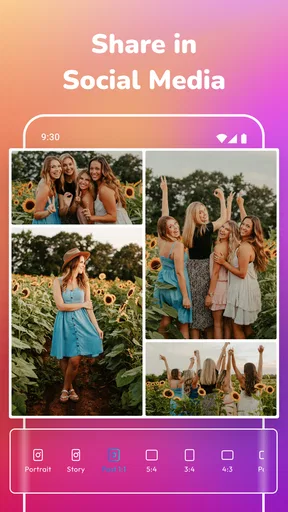
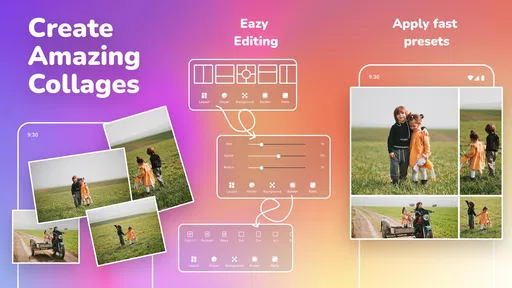
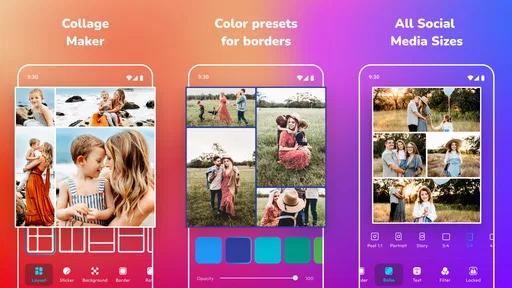
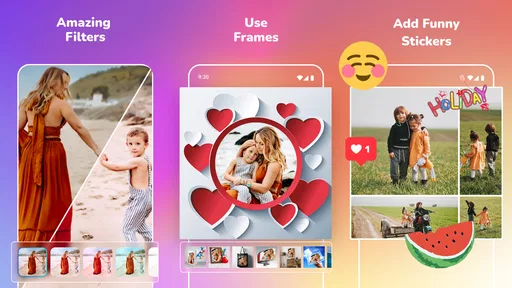
Our Review of Photo Collage Maker & Editor
 Analysis by Appyee
When I want to turn several phone photos into something I can actually share, I usually do not need a full photo editor. I need a quick layout, a little control over the crop, and an export that does not make the whole process feel like work. That is the space where Photo Collage Maker & Editor makes sense. It is a free photography app from TarrySoft, built around arranging photos into collages rather than replacing a complete desktop-style editing suite.
After spending time with it, I see the app as a practical choice for everyday photo groups: a birthday recap, a travel memory, a before-and-after comparison, or a simple post that looks more considered than a single image. Its average rating is 4.7 from roughly 153 thousand ratings, and it has passed 10 million installs, so it is clearly not a niche tool. Still, popularity does not automatically make it right for every photographer. The useful question is whether its focused workflow matches the way you want to create.
How I decide whether a collage app is worth keeping
My first test is speed. If I have to search through too many menus before seeing a usable layout, the app loses its main advantage. A collage maker should help me move from a camera roll full of images to a finished composition with minimal friction. I also look at how much control I get after choosing a template. Can I correct awkward crops? Can I make the spacing feel intentional? Can I create something that looks personal instead of like an untouched preset?
The second test is flexibility. A basic grid is fine for a quick family update, but it becomes limiting when the photos have different orientations or when I want one image to carry more visual weight. A good app needs to handle that imbalance without forcing every picture into the same visual importance. I pay attention to borders, proportions, image order, and the small adjustments that determine whether a collage feels tidy or crowded.
My final test is whether the app fits the person using it. Someone who wants detailed retouching, layers, masks, or precise typography may be happier with a broader design or photo-editing tool. Someone who wants to combine photos without learning a complicated interface may value a focused editor more. In that comparison, this app is strongest when the collage itself is the destination, not merely one step inside a much larger design project.
The basic workflow is approachable
The central idea is easy to understand: select photos, choose a collage arrangement, adjust the composition, and save or share the result. That sounds obvious, but it matters because many creative apps bury their most useful action under decorative screens. Here, the purpose remains clear. I can start with a handful of images and quickly see how they behave together rather than editing each picture separately first.
That makes it suitable for people who are not interested in learning professional editing terminology. You do not need to think in terms of layers or complex masks to get a useful result. The app is also rated for Everyone, which fits its straightforward, general-purpose character. I would feel comfortable suggesting it to a casual user who wants a visual summary of an event without turning the task into a design lesson.
There is also a practical benefit to working with several images at once. Instead of sending a long sequence of separate photos, I can create one compact image that tells a small story. For a group chat, that can be easier to view. For a social post, it can give unrelated snapshots a shared frame. For personal organization, a collage can act as a quick visual record of a day rather than a folder of nearly identical pictures.
Small composition choices make the biggest difference
The first layout I see is rarely the best one. I get better results when I treat templates as starting points rather than final designs. Photos with faces or important objects should have enough room around them, while repetitive background shots can occupy smaller spaces. If every image is equally large, the collage may feel flat. Giving the strongest photo the most visual attention usually makes the finished piece easier to read.
Crop decisions are especially important. A technically attractive photo can become awkward when a grid cuts off a face, a sign, or the main subject. I recommend checking every cell at full attention before saving, particularly when mixing portrait and landscape images. A few seconds spent repositioning a crop can make more difference than adding another frame or decorative effect.
One less obvious workflow is to prepare the photo group before opening the editor. I create a temporary selection containing only the images that belong to the same story. That reduces the temptation to keep adding “just one more” picture until the collage becomes visually noisy. It also makes the app feel faster because I am making decisions before entering the layout stage rather than repeatedly browsing the entire camera roll.
Useful situations beyond social posts
A realistic everyday example is a weekend market visit. I might have a picture of the entrance, a close-up of food, a candid photo of a friend, and a wider street scene. Posting all four separately can feel excessive, but using only one loses the atmosphere. A collage lets me combine them into a small visual postcard. I would place the strongest people-focused image in the largest area and use the other shots as context.
The same approach works for a home project. If I am repainting a room, rearranging furniture, or repairing something, a collage can show the starting point, intermediate stage, and result in one image. That is more useful than a decorative layout because the arrangement communicates progress. It can also help when asking someone for feedback: they can understand the sequence without opening several files.
For families, the app can be handy after a gathering when different people have captured different moments. Rather than asking everyone to agree on a single “best” photo, I can make one balanced selection. For small businesses or independent sellers, a collage may help present several details of a product or a few examples of work, although I would still check the final image carefully before using it in a polished promotional setting.
Where this app has the advantage
The main win is focus. Photo Collage Maker & Editor does not ask me to build a complete visual project before I can see a result. Its purpose is narrow enough to be approachable, but broad enough for common photo combinations. That makes it a better fit than a general editor when my real need is simply to arrange images cleanly.
It also works well for users who prefer a visual trial-and-error process. I can compare layouts and judge the result by eye instead of calculating exact dimensions or building the composition from an empty canvas. This is valuable on a phone, where precision editing can become tiring. The screen is small, so a workflow that gets me to a plausible arrangement quickly has a genuine advantage.
Another strength is the balance between personal choice and convenience. Preset layouts reduce the amount of work, but the finished collage does not have to look completely automatic. Photo order, crop placement, spacing, and the relationship between large and small images all give me room to make the result feel intentional. The best results come from using the template as a framework, not as a substitute for visual judgement.
The app is free to install, which lowers the barrier for occasional users. Its current version is 3.18.7, and it supports devices running Android 8.0 or later. That makes it relevant to many people with older phones, though anyone using an earlier system will need to check compatibility before planning a workflow around it. Optional in-app purchases range from $0.99 to $99.99 per item, so I would review any upgrade screen carefully and decide whether the extra options are worth paying for my own usage.
Where another type of app may fit better
A dedicated photo editor is a better choice when the images themselves need serious correction. If I need detailed color work, selective adjustments, advanced retouching, or a precise sequence of edits, a collage-focused app is not the tool I would reach for first. I would edit the individual photos elsewhere and then bring the finished versions into a collage workflow, if necessary.
A design platform may be more suitable when the collage needs text-heavy communication. For an invitation, menu, poster, presentation graphic, or branded announcement, I may need typography controls, alignment guides, reusable visual elements, and a canvas that is not constrained by a photo grid. This app can help with the image portion, but it is not the first choice when words and layout rules matter as much as the pictures.
A social network’s built-in collage feature may also be enough for a one-time post. The advantage of using a separate app is that I can prepare the image independently and reuse it in different places. The disadvantage is the extra step: select photos in one place, create the collage in another, then return to the platform where I intend to publish it. If I only need a quick temporary arrangement, that switching may not be worth it.
There is also a quality-versus-convenience trade-off. A focused mobile collage tool can be faster than a full editor, but speed often means fewer fine controls. If I am preparing a portfolio image, a print-ready composition, or anything where exact output dimensions are central, I would compare the available export and layout controls with a more specialized option before committing. For a casual share, that level of scrutiny may be unnecessary; for professional work, it is sensible.
Friction I noticed in the decision process
The biggest source of frustration is not the idea of making a collage; it is managing choices. Once I have several possible photos and layouts, it is easy to spend more time experimenting than expected. That is not unique to this app, but a template-based workflow can encourage endless comparison. I get better results when I decide the story first, limit the number of images, and only explore layouts that support that story.
Mixed photo orientations can also require patience. A portrait image and a wide landscape image do not naturally occupy the same kind of space. If I choose a layout without considering that difference, the automatic crop may weaken an otherwise good photograph. I would not blame the app for every awkward result, but I would treat crop inspection as an essential step rather than an optional finishing touch.
Users who dislike purchase prompts should pay attention during the editing process. The app is free, but optional purchases are part of the experience. I would not assume that every visible style or editing choice belongs to the free portion. Before spending time building a particular look, I would make sure the required option is available to me without an unwanted charge. That small habit prevents disappointment at the final step.
Storage and sharing habits matter too. A collage combines several source images into one new file, so I would avoid saving multiple near-identical versions unless I genuinely need them. For important memories, I keep the original photos separately and use the collage as an additional summary. That way, a crop chosen for the layout does not become the only copy of a moment.
What switching to it feels like
If you are moving from manual editing, the learning cost is low because the app narrows the task. You will spend less time constructing a canvas, but you may need to adjust your expectations about precision. The benefit is a quicker path to a shareable image; the trade-off is that you may not get the same control over every visual detail that you would find in a full design environment.
If you are moving from a built-in social media collage tool, the change is more about workflow than basic ability. You gain a separate place to prepare and keep the composition, which is useful when you want to send it through more than one channel. You also take on an extra app and an extra save step. For people who regularly reuse collages, that independence is worthwhile. For someone making one quick post every few months, it may feel unnecessary.
If you are coming from another collage maker, I would focus on the details that affect your habits rather than assuming one app is universally better. Check how quickly you can select the right photos, how comfortable the crop adjustments feel, whether the available layout style suits your images, and whether the free experience is enough. The cost of switching is usually not technical knowledge; it is rebuilding your preferred routine and learning where the controls are placed.
One useful way to test it is to recreate a collage you already know well. Use the same photo group and aim for the same purpose, not necessarily the same appearance. If you can produce a result you would actually share without fighting the interface, the app is probably a good match. If you keep wishing for layers, text tools, or exact canvas control, that reaction is valuable evidence that you need a different category of editor.
Who should download it
I would recommend Photo Collage Maker & Editor to someone who wants an uncomplicated way to combine phone photos into a single image. It is particularly well suited to family recaps, travel snapshots, simple comparisons, and casual sharing. The Everyone age rating, free entry point, broad Android compatibility from version 8.0 onward, and large user base make it an easy app to try without treating the decision as a major commitment.
I would be more cautious about recommending it to a photographer who wants a complete editing studio. If your normal workflow includes detailed corrections, carefully controlled typography, print preparation, or complex compositions, you may outgrow a collage-first tool quickly. In that case, use a more advanced editor for the demanding work and consider this app only when speed and simple photo arrangement are the priority.
My strongest advice is to choose images with a clear relationship. A collage is not automatically better because it contains more photos. Start with a small, purposeful set, give the most important image enough space, inspect every crop, and remove anything that repeats information. Those steps matter more than decorative extras and are the difference between a collage that feels like a story and one that feels like a crowded camera roll.
My recommendation after using it
Photo Collage Maker & Editor is a sensible free option for casual photo composition, and I like it most when I need a result quickly without opening a heavyweight design tool. TarrySoft has kept the concept understandable: gather photos, arrange them, refine the visual balance, and share the finished piece. The app earns its place on my phone when the goal is a compact visual summary rather than a technically elaborate edit.
It is not the universal answer for every image project, and the optional purchases mean I would stay alert to what is included before finishing a design. Still, those limitations do not cancel out its main usefulness. If your priority is turning a small group of phone photos into a clean, shareable collage with minimal learning, this is an app I would recommend trying. If your priority is precision design, advanced retouching, or professional layout control, I would start with a broader alternative instead and use a collage tool only as a supporting step.
In short, I see it as a practical everyday utility rather than a replacement for a full creative suite. It succeeds when I keep the project focused, make deliberate crop choices, and let the photos carry the message. For that specific job, its straightforward approach is more valuable than a long list of advanced features I may never use.
Verdict
Strengths of Photo Collage Maker & Editor
- Offers many collage layouts for different photo combinations.
- Includes stickers, frames, backgrounds, and decorative elements.
- Simple controls make editing accessible for beginners.
- Supports quick sharing to social media and messaging apps.
- Lets you create personalized designs without advanced editing skills.
Limitations of Photo Collage Maker & Editor
- Some templates and effects may require in-app purchases.
- Ads can interrupt editing, especially in the free version.
- Export quality may vary depending on the selected layout.
- Too many design options can feel overwhelming at first.
- Privacy permissions should be reviewed before importing personal photos.
Other Releases by TarrySoft
View All
Pixel 4D™ Live Wallpapers
Personalization4.7

Wallpapers HD - Backgrounds 4K
Personalization4.8

Video Compressor & Converter
Video Players & Editors4.5

Cleaner - Clean Phone & VPN
Tools4.6
Similar Picks in This Category
View All
Google Photos
Google LLC4.4

Gallery
Google LLC4.2

Picsart AI Photo Editor, Video
PicsArt, Inc.3.9

B612 AI Photo&Video Editor
SNOW Corporation4.1

BeautyPlus-Selfie Photo Editor
PIXOCIAL TECHNOLOGY (SINGAPORE) PTE. LTD.4.5

Remini - AI Photo Enhancer
Bending Spoons4.1
Frequently Asked Questions
What is Photo Collage Maker & Editor used for?
Photo Collage Maker & Editor is designed for combining multiple pictures into a single creative image. During testing, its main purpose was to help users build collages for social media, albums, invitations, and personal projects. You can arrange photos in different layouts, adjust spacing, apply backgrounds, and add finishing touches without needing advanced photo-editing experience.
Does Photo Collage Maker & Editor include templates, filters, and editing tools?
Yes, the app generally includes a selection of collage layouts and basic editing options that make it easier to customize each project. Depending on the version and device, users may find filters, frames, stickers, text tools, backgrounds, cropping, rotation, and brightness adjustments. The available features can vary, so checking the current app listing is recommended before downloading.
Is Photo Collage Maker & Editor free to download and use?
Photo Collage Maker & Editor can usually be downloaded without an upfront charge, but free access may include advertisements, branded elements, limited templates, or restrictions on certain premium tools. Some versions may offer optional in-app purchases or a subscription to unlock additional content and remove advertising. Review the pricing details in the official store before confirming any purchase.
Can I save and share collages created with Photo Collage Maker & Editor?
After completing a collage, users can normally save the result to their device and share it through supported apps such as messaging platforms, email, or social networks. Export quality and available formats may depend on the app version and selected settings. If image resolution is important, check the export options carefully and confirm that the final file meets your intended use.
Does Photo Collage Maker & Editor require special permissions or an internet connection?
The app may request access to photos, media files, and sometimes camera features so you can select images or capture new ones. These permissions should be reviewed before approval, particularly if privacy is a concern. Basic collage creation may work offline, although advertisements, online content, cloud features, or certain templates could require an active internet connection.
